Hoe stel ik Kai een vraag?
Onze AI-assistent Kai helpt bij het analyseren en sneller beantwoorden van supportvragen. Hoe duidelijker uw vraag of probleem wordt omschreven, hoe gerichter Kai kan zoeken naar de juiste oplossing. Op deze pagina leggen we uit:
- Via welke kanalen u een vraag kunt stellen
- Omschrijving van uw vraag of probleem
- Wel of geen bijlages meesturen
- Checklist: omschrijf uw probleem
- Extra tips
Via welke kanalen kunt u een vraag stellen?
U kunt uw vraag via onderstaande kanalen aan Kai stellen. Waar mogelijk ondersteunt Kai bij het analyseren en verwerken van uw vraag.
Heeft u een storing die directe aandacht vereist? Neem dan altijd telefonisch contact op met onze supportafdeling. Onze medewerkers helpen u direct en kunnen, indien relevant, Kai inzetten ter ondersteuning van de analyse.

Omschrijving van uw vraag
De manier waarop u uw vraag of probleem formuleert, heeft veel invloed op de kwaliteit van het antwoord. Het is daarom belangrijk dat u een duidelijke omschrijving van uw vraagstuk geeft, inclusief context. Denk hierbij aan vragen als wie, wat, waar, wanneer, waarom, hoe, etc. Hoe meer relevante én kloppende data u aanlevert, hoe gerichter Kai kan zoeken én hoe beter het resultaat.
Wel of geen bijlages meesturen?
Kai kan bepaalde bijlagen analyseren, maar niet alle bestandstypen.
Wanneer u een screenshot meestuurt, kan Kai deze gebruiken bij het zoeken naar een oplossing. Zorg ervoor dat het volledige scherm zichtbaar is en niet maar een gedeelte, zodat Kai het juiste scherm én proces kan herkennen.
Niet ondersteunde bestanden
- Excel-bestanden
- EKT-berichten
- Video’s
- Andere documentbijlage
Wanneer de informatie uit zo’n bestand belangrijk is voor de omschrijving van uw vraag of probleem, kunt u dit het beste in de tekst van de melding opnemen.
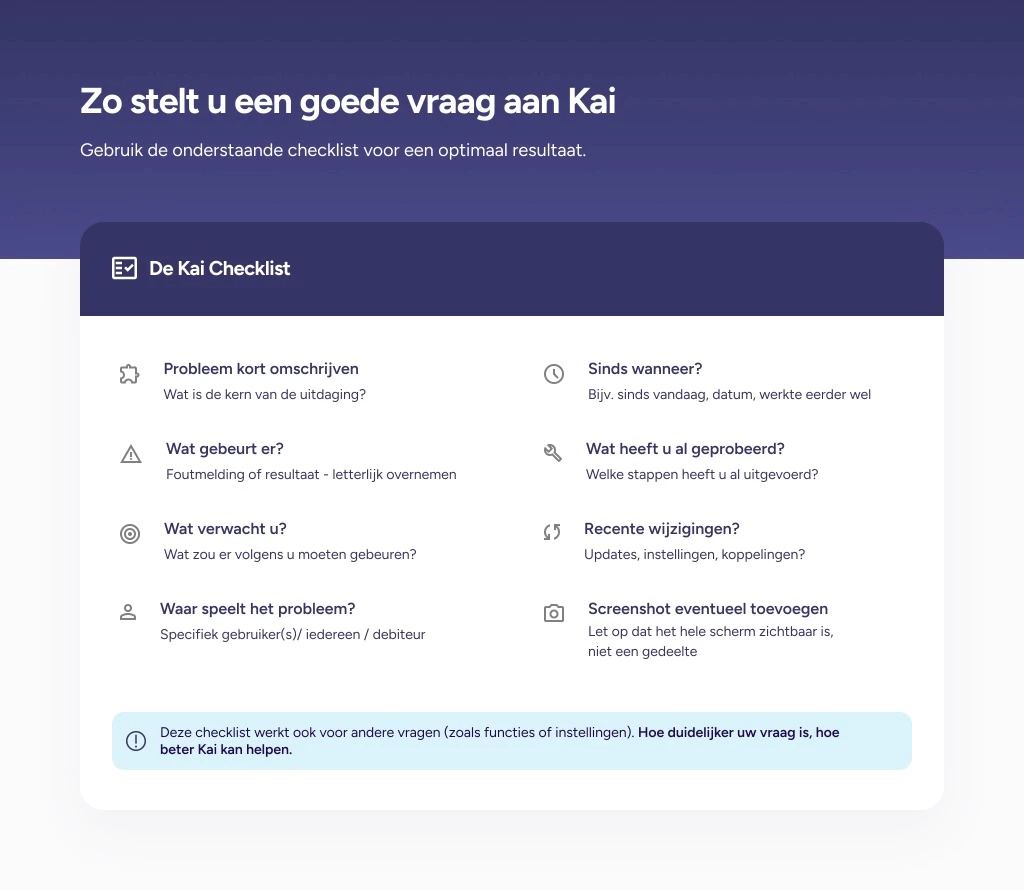
Handige checklist voor de omschrijving van uw probleem
Gebruik onderstaande checklist voor het omschrijven van uw probleem. U kunt de checklist ook als leidraad gebruiken voor vragen over het systeem. De input van een vraag is wellicht anders dan die van een probleem, maar het doel is hetzelfde: een duidelijke, eenzijdige omschrijving. Hoe specifieker uw vraag of probleem is omschreven, hoe beter Kai u kan helpen.
*Klik op de afbeelding voor een betere weergave.
Extra tips voor een gerichter antwoord
- Vermeld altijd wat u al geprobeerd heeft, zodat Kai dit niet opnieuw hoeft voorstellen.
- Gebruik exacte namen van schermen, instellingen en knoppen.
- Neem eventuele foutmeldingen letterlijk over in de omschrijving van je vraag.
- Stel één vraag per keer.
Meer informatie?
Meer informatie over de ontwikkeling en mogelijkheden van Kai leest u hier. Indien u overige vragen heeft, kunt u contact opnemen via onderstaande button.
-bec6ec6c-9b26-4f43-924e-83937628277f.webp)